

Apple Notes is available to you if you buy an iPhone, iPad, or Mac computer—oh, and it’s available on the web too. Introduced with the first iPhone back in 2007, Notes is now one of the most ubiquitous apps. And over the years, it’s added more and more features to its basic note-taking structure.
Even if you use Apple Notes every day to make lists, keep on top of your to-dos, or jot down random thoughts, you may not be aware of everything Notes can do for you. It’s an incredibly capable and versatile app, despite its unassuming interface, and you should find at least some of these tips useful.
1. Collaborate on notes
You can collaborate on notes with other people, via iCloud, which is handy for families and work teams. From inside a note, tap the share button (the arrow and square), select Collaborate at the top of the next screen, and you’ll get a link you can send to others.
2. Attach tags to notes
Tagging is a really effective way of organizing your notes: All you need to do is add the tag with a hashtag (like “#work”) anywhere in the note. You’ll see a list of used tags on the main notes screen, and you can then tap on any hashtag to jump to the matching notes.
3. Add lines and grids
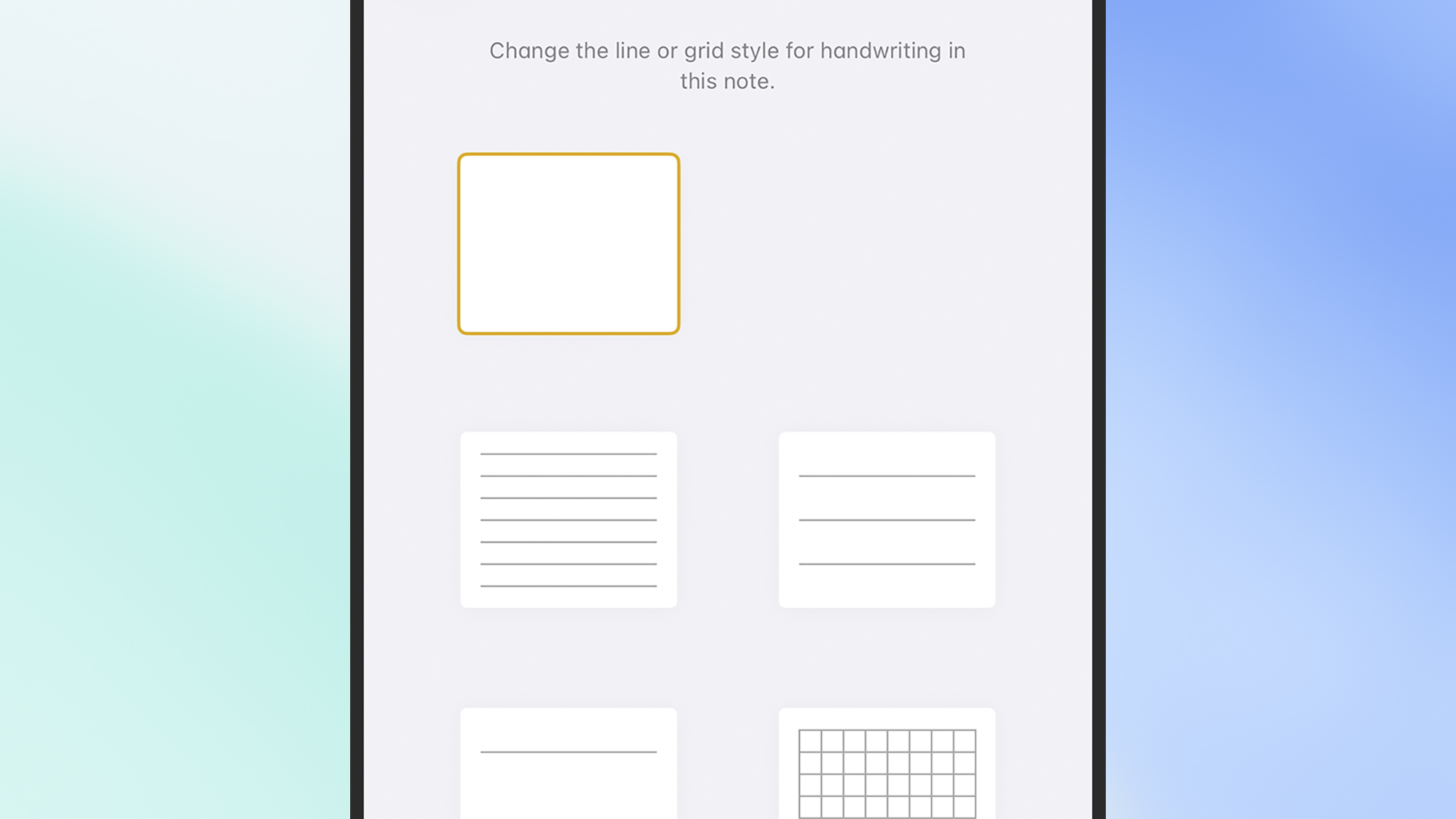
If you’re using one of the drawing tools to scribble inside a note—whether it’s sketching or handwriting—lines and grids can be helpful guides. You can drop these into any note when it’s open by tapping the three dots (top right), then choosing Lines & Grids from the menu.
4. Drop tables into your notes
Tables can be a really useful way of getting a note organised. When you’re in text editing mode inside a note, tap the table icon on the toolbar (it looks like four rectangles) to add one in. Tap the handles around the table to add and remove columns and rows as needed.
5. Quickly get to attachments
You can attach all sorts to your notes now, including photos, files, and web links. To quickly get to your attachments from the main list of notes, tap the three dots (top right), then pick View Attachments—it can save you a lot of time searching and scrolling.
6. Change the layout
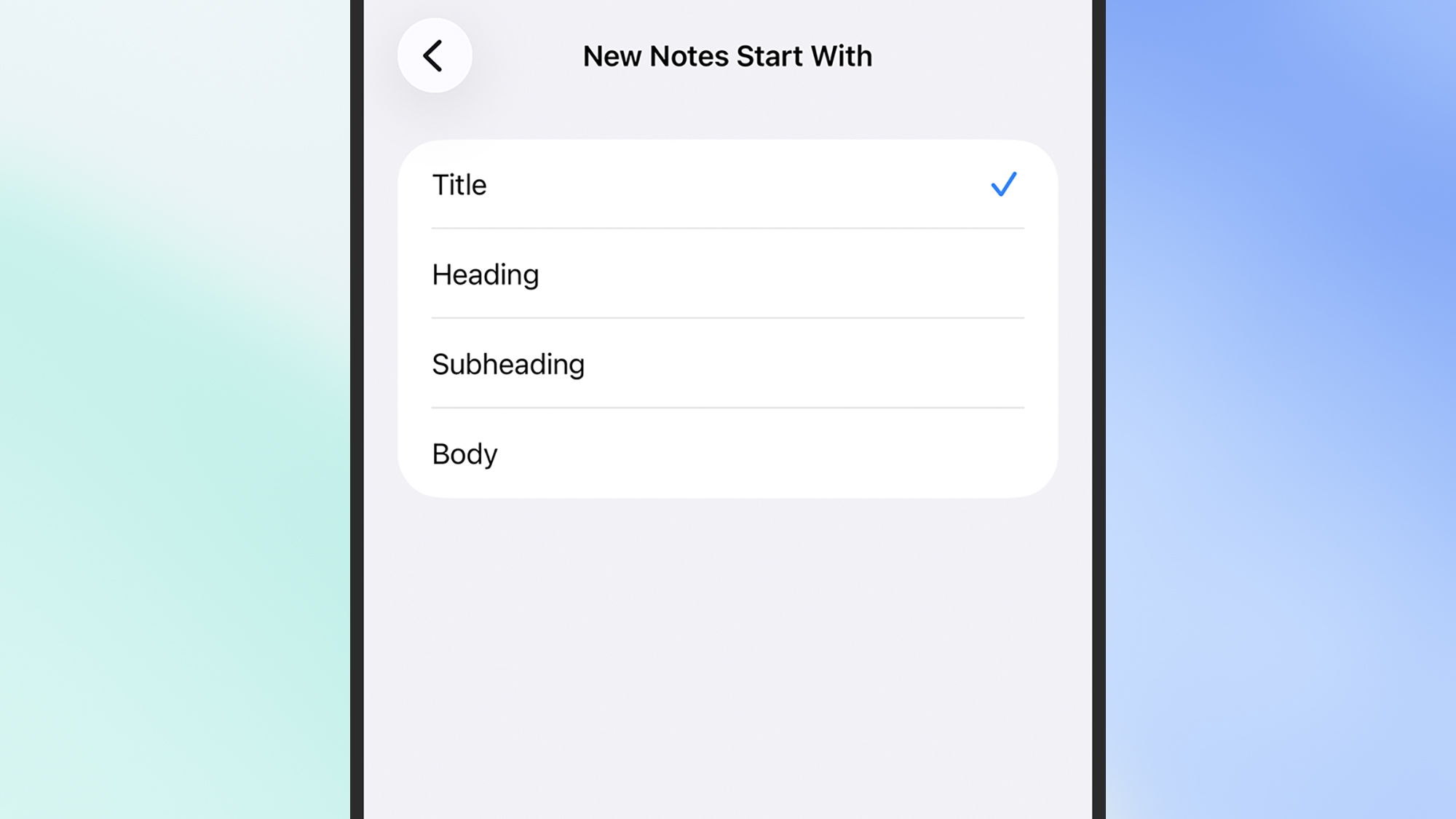
New notes will start with a larger, bold heading by default, but you don’t have to stick with this if you don’t want to. From the main iOS Settings screen, choose Apps then Notes, then New Notes Start With: The available options are Title, Heading, Subheading, and Body.
7. Proofread notes with AI
Apple Intelligence is now available in Notes, if you need it: From inside a note, tap the Apple Intelligence button on the toolbar (it looks like a pen inside a star shape), then choose Proofread to have the AI check spelling, grammar, and sentence structure.
8. Solve equations
Notes can solve basic equations and sums for you, like a calculator app or spreadsheet: You don’t need to do anything special to enable this, just write out your calculations followed by an equals sign. You can also do conversions, like “8 centimeters in inches =”.
9. Link notes together

You can link notes together, Wikipedia style, if you need to. Select some text in a note where you want to create the link, then choose Add Link from the pop-up menu (scroll right if you need to). Next, type the name of the note to create a link to, then select it.
10. Add scans to notes
It’s possible to scan all sorts into your notes, if you need to. From inside a note, tap the three dots in the top right corner, then pick Scan and point your camera at whatever it is you want scanning (from documents to artwork). You can annotate your scans too.
11. Put your notes into subfolders
Notes supports folders, so you don’t have to have everything in one big bucket. From the main notes screen, tap the back arrow (top left) to see your folders and create new ones (via the new folder icon, top right). You can also make subfolders via the Edit button.
12. Create smart folders
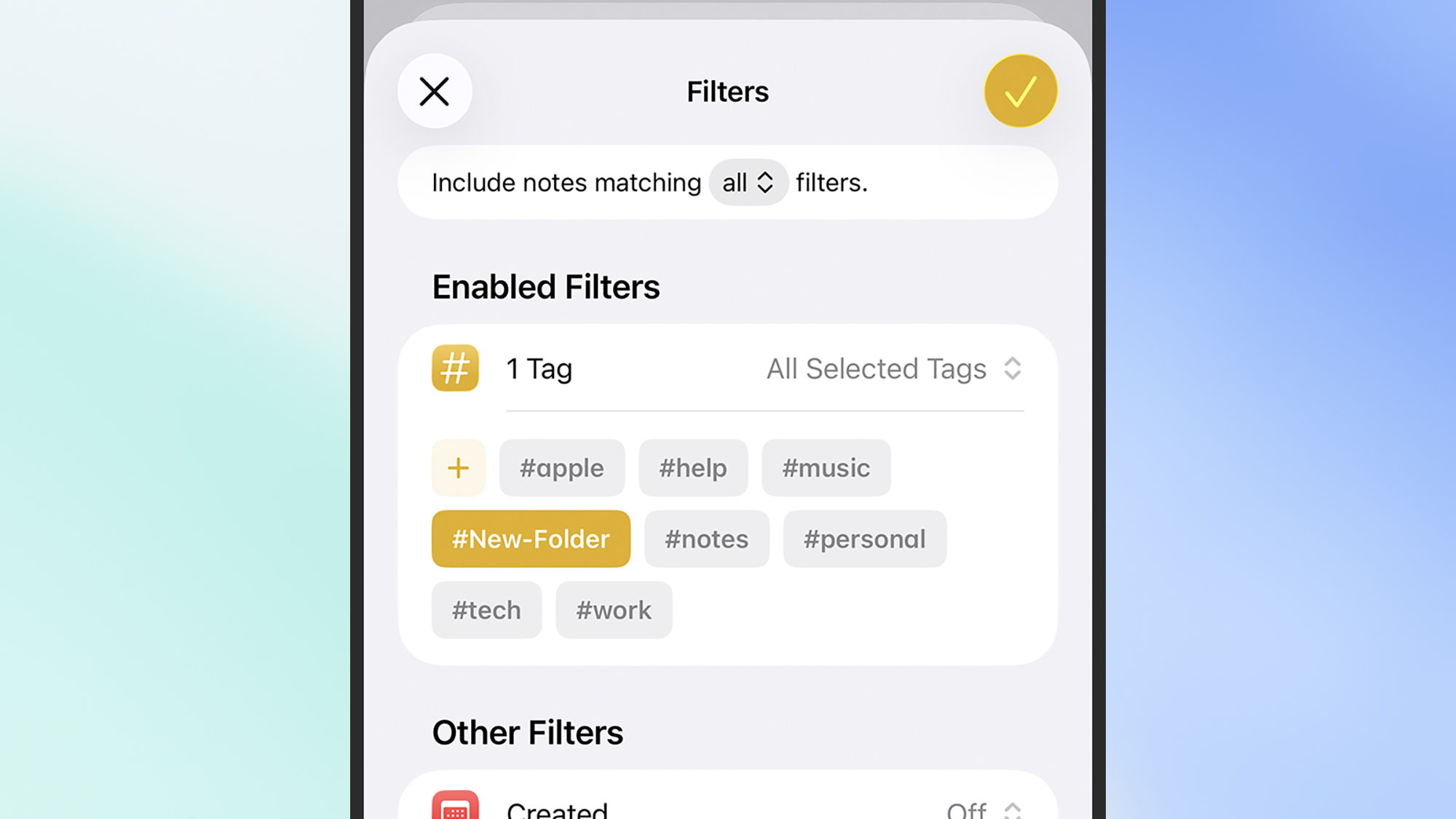
Smart folders are really handy. Whenever you create a new folder, you have the option to make it a smart folder, then it can be auto-populated using a range of different criteria: Specific tags, what it has inside it, when it was last edited, whether it’s locked, and more.
13. Switch to gallery view
You don’t have to settle for the default list view for your notes: On the screen showing all your notes, tap the three dots in the top right corner, then pick View as Gallery from the pop-up menu. Your notes then show as thumbnails, in reverse chronological order.
14. Record voice notes
Your notes can have voice clips attached, making this a handy if basic way of keeping audio recordings organized. To add a voice clip, tap the paperclip icon on the floating toolbar, then pick Record Audio. Tap the red record button, and you can start speaking.
15. Highlight text in a note
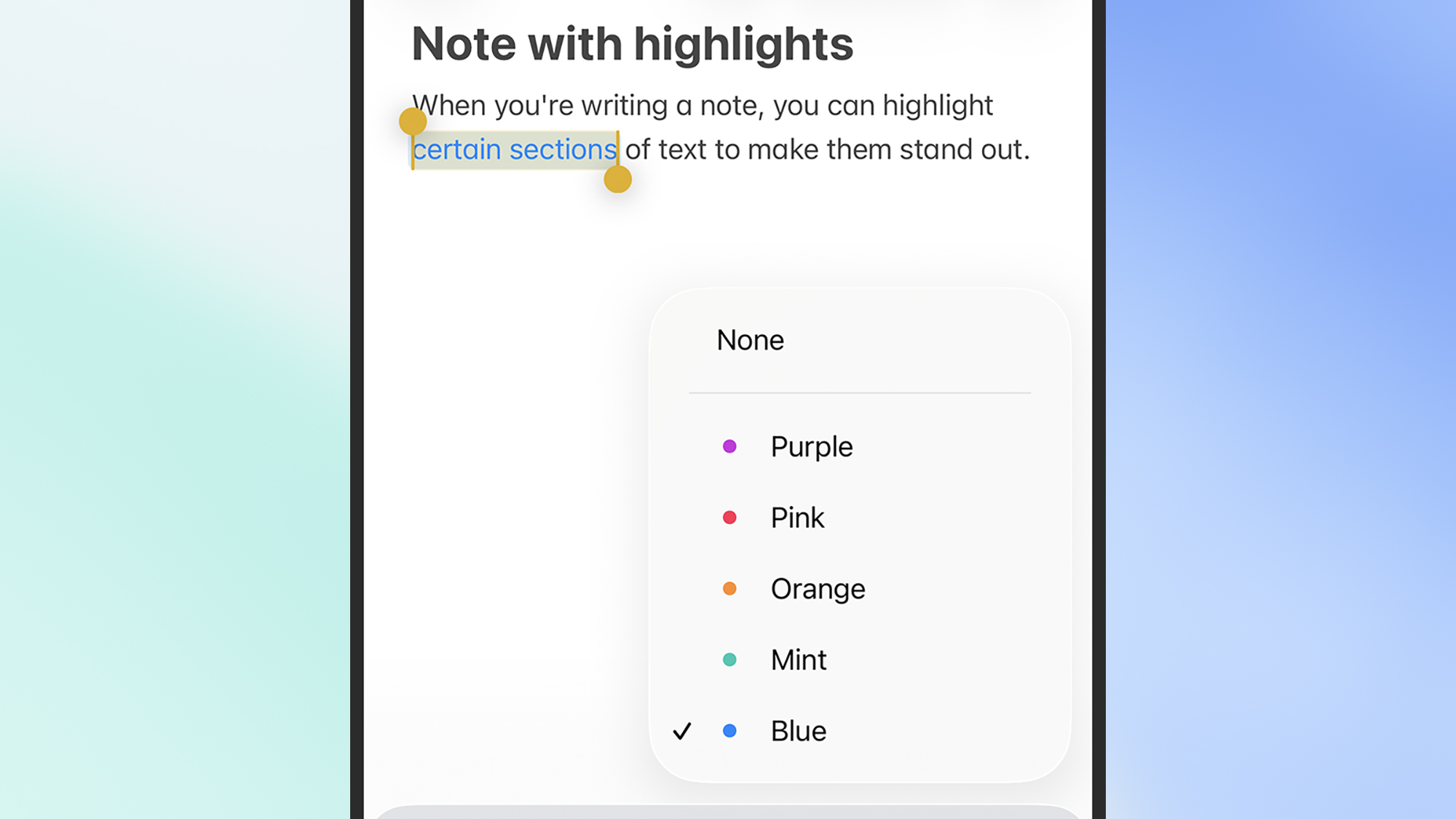
Highlighting can help certain blocks of text stand out. Highlight any text in a note with a double tap, then tap the pen icon on the floating toolbar to highlight it. Tap the pen again and you can pick from five highlighter colors: Purple, Pink, Orange, Mint, and Blue.
16. Make quick notes from anywhere
It’s possible to make a ‘quick note’ from anywhere on iOS: The quick note link is on the share menu (the arrow and rectangle icon), and you can add it to the Control Center too. Any note you create via the quick note overlay can be found inside the Notes app.
17. Lock a note
If there are specific notes you want to make extra sure are kept private, you can lock them with a passcode, Touch ID, or Face ID (whatever you currently use to lock your iPhone). From inside a note, tap the three dots in the top right corner, then tap the Lock icon.

2025 PopSci Outdoor Gift Guide
DIY,Tech Hacksevergreen,News#clever #Apple #Notes #tips1768070435